This is an old revision of the document!
How to create a set of waypoints?
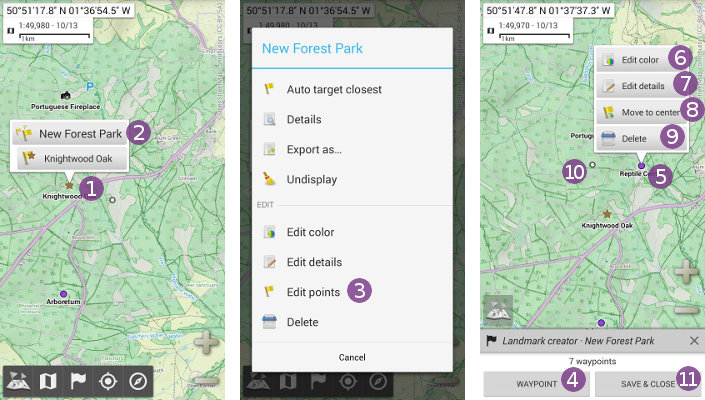
- Click on the map center icon
 and on
 “Create a landmark…” ;
; - Select
“Set of waypoints” ;
; - If desired, type a name in the
“Name” text field;
 - If desired, change the folder
 in which to save the waypoint;
 - If desired, change other properties like the color or the icon by clicking on
“More…” ;
; - Click on
“Ok” to validate.
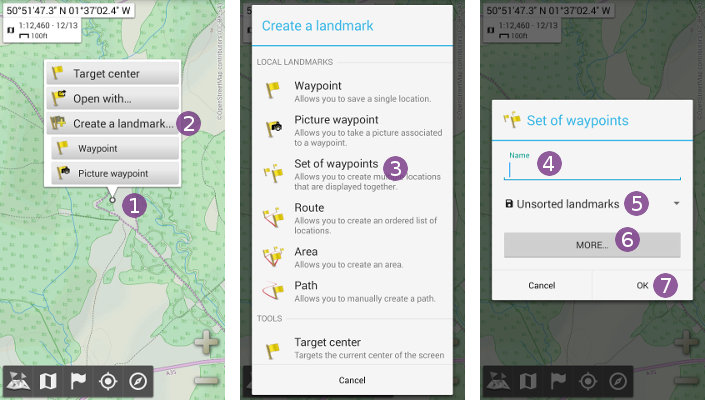
The edit mode is activated, you can now add waypoints:
- Move the map center icon over the location where to add a waypoint and click on
“Waypoint” ;
; - If desired, type a name for the waypoint in the
“Name” text field and change other properties by clicking on
 “More…”; - Click on the
“Ok”button .
.
The new waypoint is displayed on the map. Add as many waypoints as you want, and when finished, click on “Save & close”  .
.
How to add, move or delete points of a set?
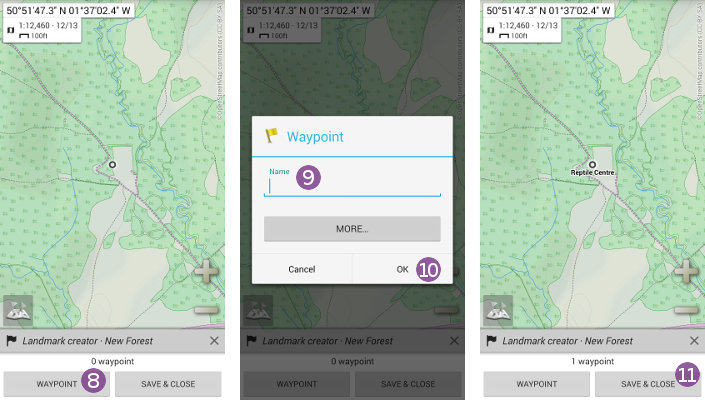
To add waypoints to a set:
- Click on any waypoint of the set and on its name ;
- In the available actions list, select
“Edit points” to activate the edit mode; - Click on
“Waypoint” to add waypoints as explained above.
To edit, move or delete an existing waypoint using the edit mode:
- Click on one waypoint of the edited set of waypoints;
“Edit color” to edit the color of the waypoint;“Edit details” to edit the details of the waypoint (name, icon, description, etc.);“Move to center” to move the waypoint to the map center icon ;“Delete” to delete the waypoint.
When you've done, click on “Save & close” to close the edit mode.